
Day 10 / 38 – Moho
Today’s tool: Basic Smart Warp
“Basic” is doing a lot of work in that sentence.lol
Smart Warp feels like giving your drawing a nervous system.
Pull here → everything reacts.
Push there → something weird happens three steps away.
Still wishing for that alternate universe:
Me, full-time student of animation,
surrounded by tiny rubber ducks, warping shapes all day. lol
Instead, this week the Day job was the focus.
Day job: 1 for the win.
Me: trying to warp things: 0
Things to Know:
✔ Smart Warp
What Smart Warp Does
A mesh lets you mold, deform, and animate your artwork by moving points that adjust the image in a non-destructive way.
1. Create the Mesh (with Moho)

At Frame 0:
- Go to the Head layer
- Select the Draw layer
- Click Create Mesh Layer
Clean up the mesh (if needed):
- Use the Select Points Tool
- Select unwanted points (outside the head), click Delete
Result:
- A new layer appears over the bitmap: Head (Warp) Layer
- Now when you make warp adjustments, they will now happen on this layer
TEST THE MESH
At Frame 1+:
- Select the Transform Points Tool to move points on the mesh
- You will notice as you move the mesh points it will deform your image
- Problem: there is a limit to what you can do, you can’t move points beyond the eyes, duck bill, etc. This will limit a “head turn” option.
- Solution: Follow Step 2, Set Up Mesh Influence Across more Layers
2. Set Up Mesh Influence Across more Layers
At Frame 0:
- Make sure all your layers (drawings) are visible/open in the layers panel (right)
Then:
- Double-click one layer above the Head (Warp) layer
- In the Layer Settings panel:
- Go to the Image tab
- Go down to the warp/mesh dropdown
- Select your Head (Warp) layer
- Click OK
Test the Mesh
At Frame 1+:
- Select the Transform Points Tool to move points on the mesh
- You will notice this time more of your image is able to be manipulated e.g., the eyes, duck bill, etc.
- Problem: again this mesh is basic, doesn’t take in all the details.
- Solution: Follow Step 3, Refine the Mesh (Even More).
3. Refine the Mesh (Even More)
You CAN add more control points:

At Frame 0:
- Select the Add Point Tool
- Add more points to the mesh for better control
Tips:
- Place extra points around detailed areas (eyes, mouth, bill, etc.)
- More points = more accurate control/deformation.
Test the Mesh
At Frame 1+:
- Select the Transform Points Tool to move points on the mesh
- You will notice you have even more control of the way your image is distorting.
Special note:
the mask wasn’t following the head.
Which explains… a lot.
Fix = layer binding (again). May need to revisit that video, Part 2/38.
Tie the mask to the head so the warp follows the right bone. Easy peasey, not really. But it is powerful.
And, I cheated.
Okay, I confess, it was driving me a little crazy that every time I set a keyframe, Moho would automatically fill in the in-between. My “solution” was copying and pasting keyframes close together just to hold a pose… which worked, but about as well as the baling wire my neighbor uses on her fence to keep her Great Pyrenees (Louie) from barking outside my house all night. I digress.
So, thanks Google, turns out there was an easy fix. Right click on the keyframe, and surprise there are actually a lot of options.
Voilà . Problem solved, switching to a hold keyframe lets the animation stay put until I actually want it to move.
Novel.
Honestly, easier apparently than keeping a great Pyrenees fenced.

Day 10 — Afterthoughts
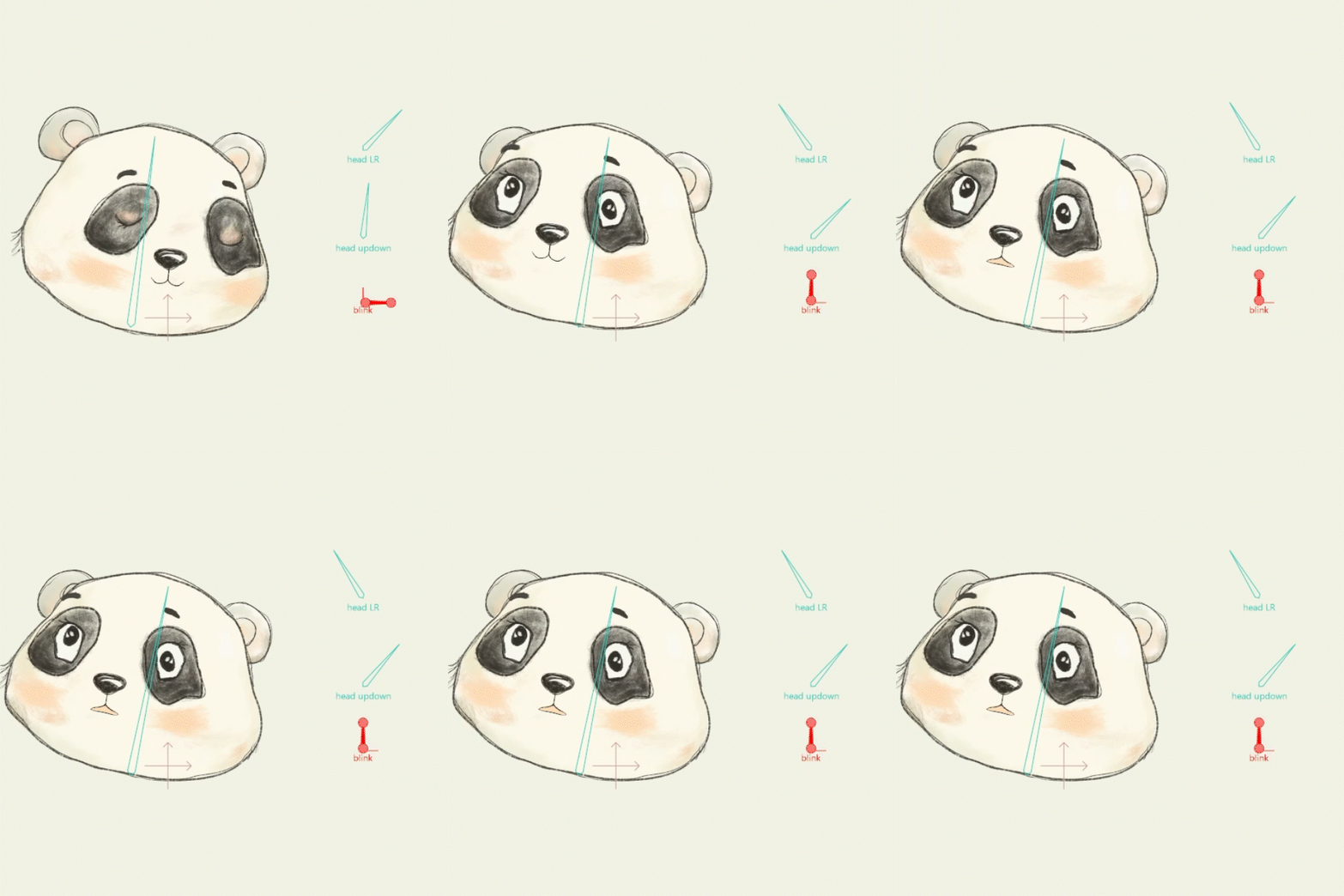
I’ll admit, this was a rough one. Not my best showing. It’s hard to move the mesh exactly how I want, and I wasn’t quite brave enough to attempt a head turn, especially with Ducky’s bill in the mix. Maybe that will come. For now, a squishy face is as far as I got. Keep learning, keep working at it.
Squishing those cheeks in.
Squish, stretch, repeat. 🎬 nik

One response to “Part 10/38. “Basic” Smart Warp. Learning Moho from beginner to expert”
[…] Review mesh layers HERE. […]