Day 6 / 38 – Moho
Here we go, here we go — MOHO! 🎬
We’ve officially crossed a small milestone. Day 6 out of 38 means we’re 15.79% of the way through the journey. Not even a week in, and things are already starting to click. Today’s lesson was only 18 minutes long, but wow — it packed a punch.
Things to Know
✔ Create a New File in Moho (Ctrl + N)
✔ Open a .psd file
✔ Add bones to the Character
✔ Hierarchy of Bones
✔ Select and adjust bones
✔ Bone Tools
✔ Test the rig to check movement
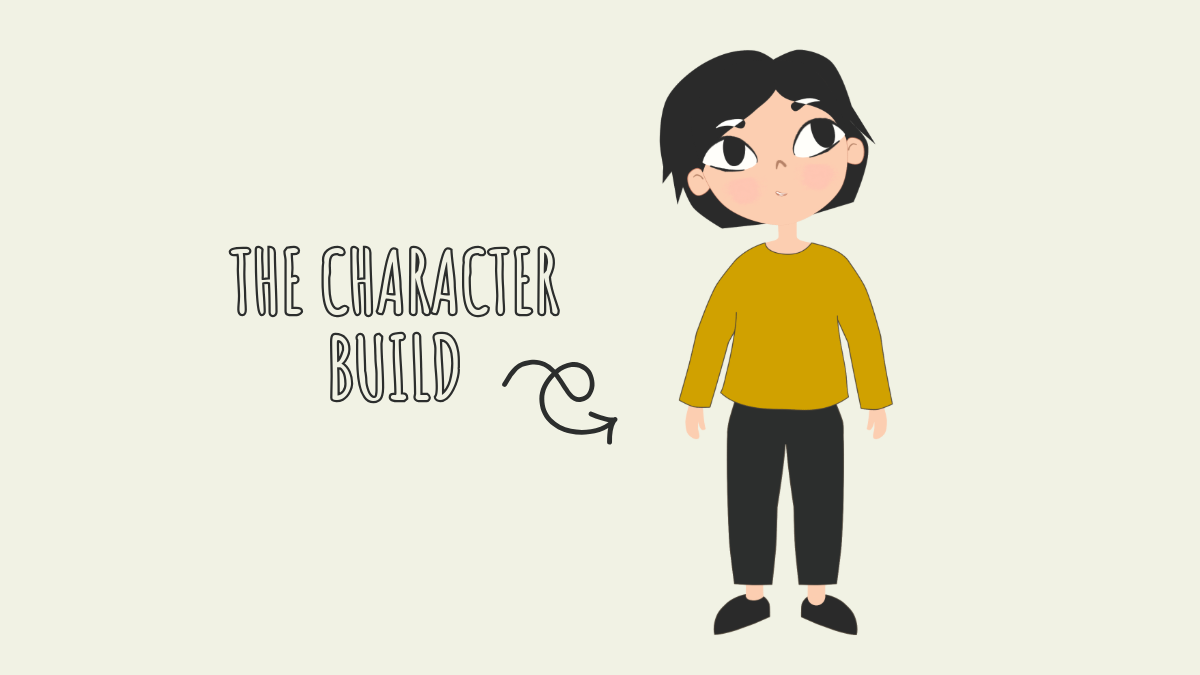
First stop: getting your character from your .psd file into Moho.

- Open Moho
- Create a New File
- Import a
.psdfile- Individually
- Composite
- or Select layers
Yay! 🎉 Your character should now be showing up in Moho, though it might appear outside the viewing frame. Now it’s time to grab your first tool and reposition the character so it fits nicely within the scene. In the tools panel grab the:

Transform Layer Tool

Grab the red selection area…and shrink down until it fits into frame.
Next, you’ll need a Bone Layer to set up your character. There are two ways to add bones:

- Go to Layer (upper left corner+) → Add → Bone Layer.
OR - Since Moho automatically created a group for the
.psdcharacter you imported, you can right-click the group and select Convert to Bone.
Once the bones are added, you’ll see the Bone tools appear in the Tools panel in the upper-left corner. With new options, like: select bones, add bones, transform bones, etc,
⚠️ Important: Make sure you stay on Frame 0 while setting up your bones. If you move bones on other frames, you’ll start creating animation instead of building the rig, which can limit your setup options later.
Made a quick note to self: Moho is SO user-friendly! I love it. Also, made a tiny flip book with the quick rig steps I’ve learned so far. I’m sure I’ll add to it as I go, but for now, it’s ready to reference while animating. 📖
testing testing
On the Character (Bones) layer, you can test the rig using the Manipulate Bones tool.
Soooooo… problems at all. 😬 Nothing is separated, and nothing everything looks distorted.

Apparently, there are these things called spheres of influence—mine are way too big. I need to bind some bones, whatever that means. So, we will tackle that in 6b, because the learning has been grand, and this one’s already getting a little chunky.
Until then. nik ✨🎬