Post 52 –Moho 14.5 and Improved Dynamic Bones in Moho 14
Well, this blog post is going to be a little weighty, because we are interrupting our regularly scheduled Moho blog post (bone dynamics) because apparently the Moho team are complete maniacs and released an epic update that is FREE to Moho 14 users.
This program. Everyone who uses it gushes about it, and I am no exception.
For a little context, I came to Moho with some minor experience in hand animation in Procreate and a bit of Procreate Dreams (before the more confusing update). I had also dabbled briefly in Adobe Character Animator when my son convinced me to take the leap into Moho, complete with a very convincing, “You can do it” pep talk. I bought Moho at Christmas last year during one of their holiday specials. However, it wasn’t until February or so, when I started working my way through their free 38 Days in Moho lessons.
Well, clearly I love it. Because here I am, 52 blog posts later, still talking about it.
Things to Know:
✔ Bone Dynamic Options
✔ Live Playback Mode
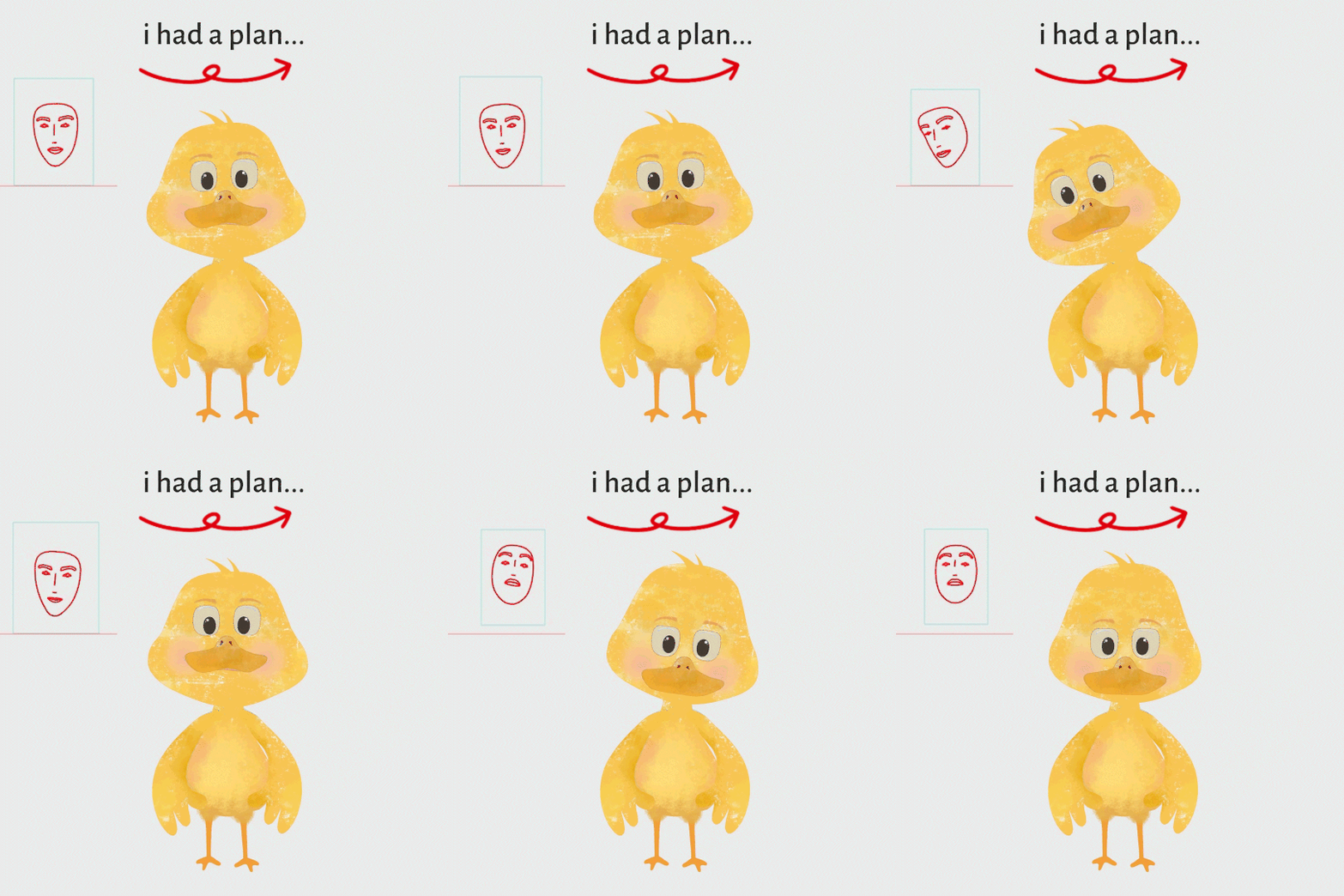
Duck Dynamics
Bone dynamics let you give your character a particular material quality, the sensation of how you want them to move. According to Paredes, there’s a lot of trial and error involved here. It’s less about finding one “correct” setting and more about experimenting until you get the feel you’re trying to evoke with your character.
A handy little Moho trick: Ctrl + right-click sets a stop at the section you want to preview, even if your animation extends much farther.
Angle: Torque, Spring, Damping, andWeight
Bone dynamics use four main settings: Weight, Torque, Spring, and Damping. Each setting controls a different aspect of how the bone reacts and moves.
Weight
What it controls: The apparent weight of the bone.
The bone is still influenced by its physical size, but the Weight setting allows you to make it behave as though it is lighter or heavier.
- Lighter weight: Easier for the software to move; the bone reacts more easily.
- Heavier weight: Harder for the software to move; the reaction is heavier and happens a little later.
Torque
What it controls: The amount of rotation or range of movement. Torque determines how far the bone will rotate when it is moved.
- Higher torque: Greater rotation and a wider movement.
- Lower torque: Less rotation and a smaller movement.
Spring
What it controls: The force that returns the bone to its normal angle or resting position. Spring determines how strongly the bone is pulled back toward its original position.
- Higher spring: More force is applied to return the bone to position, creating a more rigid movement.
- Lower spring: Less force is applied, creating a softer, looser movement that takes longer to return.
Damping
What it controls: How quickly the bone’s movement settles. Damping determines how long the bone continues moving after the character’s movement stops.
- Higher damping: The bone settles more quickly.
- Lower damping: The bone continues moving for longer before settling back into place.


Position
You can also apply torque, spring, damping, and weight to the bone’s position. Weight determines how much the bone is affected by changes in position: heavier weight results in less noticeable movement, while lighter weight makes the bone more responsive. Torque controls the amount of movement, with higher values creating more movement. Spring determines how quickly the bone returns to its normal position, while damping controls how long the movement continues after the character has settled into position.
Scale
The scale is a fun one. You can increase the torque for some juicy scaling or lower it for a more subtle effect. Increase the spring to make the scaling more dramatic, or lower it to soften the stretch. With weight, lighter bones will bounce more, while heavier bones will bounce less. Finally, damping controls how long the movement continues before settling, whether you want it to stop sooner or later. You can also apply squash and stretch to any bone and watch it squash and stretch in response to the movement.
Don’t eat the marshmallow.
14.5 Live Tracking
If you’ve created an action, you can link it to live tracking:


- Go to the Actions panel.
2. Right-click on your action and select Properties.
3. Use the drop-down menu to choose your Tracking Selection (for example, Head front/back).
Your selection will appear in the shortcut keyboard. Go to Live Playback to see your bone in action !! Here is a video on how to create a live model in less than an hour !
Post 52 — Afterthoughts
Continuing my reading in The Plateau Effect, the take away this week, “To make retrograde progress is a distinct skill. You need to be able to ignore shiny new objects and focus on a task to ever complete anything of substance…this skill has never been more in need with an Internet that offers an unlimited supply of shiny new objects…the ability to stay on task is critical.” The Plateau Effect.
So I sorta did and didn’t’ stay on task this week, because..
update. 14.5
but it’s still in Moho and I am still here playing. So there you go.
live action baby.📽️ nik