Day 8 / 38 – Moho
Target bones are simple. Move the little red handle, and the arm or leg follows. Everything bends, everything stretches. Instant pose, instant motion.
Things to Know:
✔ Target Bones
✔ Bone Constraints
✔ Deselect all Bones
✔ Select Bones Tool
✔ Manipulate Bones Tool
✔ Transform Bones Tool
Steps to Creating a Target Bone ⭐
Step 1: Go to Frame 0 on your bone layer.
Step 2: Select the Add Bone Tool.
Step 3: Make sure no bones are selected (nothing highlighted red, +alt to deselect).
Step 4: Hold Alt and click a blank area on the canvas to create a floating bone.
Step 5: Switch to the Transform Bone Tool and move the new bone to the correct location—usually the wrist for an arm or the bottom of the foot for a leg. See ducky below.
Step 6: Rename the bone Target in the upper-left Bone panel so it’s easy to identify.
Step 7: Select the Select Bone Tool and click the lower arm bone or lower leg bone, depending on the limb you are adjusting.
Step 8: With that bone highlighted, go to Bone Constraints in the upper-left panel.
Step 9: Under Inverse Kinematics, change None → Target, then select the target bone from the dropdown menu. The bone should now display the target symbol.
Step 10: Move to Frame 6 (or any frame off Frame 0) to test it. Use the Transform Bone Tool, click the target bone, and drag it—the arm or leg should now follow the target automatically.
You can also tweak the Bone Constraints to add more stretch if you want the limb to reach further.

Frame 0=Skeleton surgery 🦴
Frame 1+ = Acting / animation 🎬
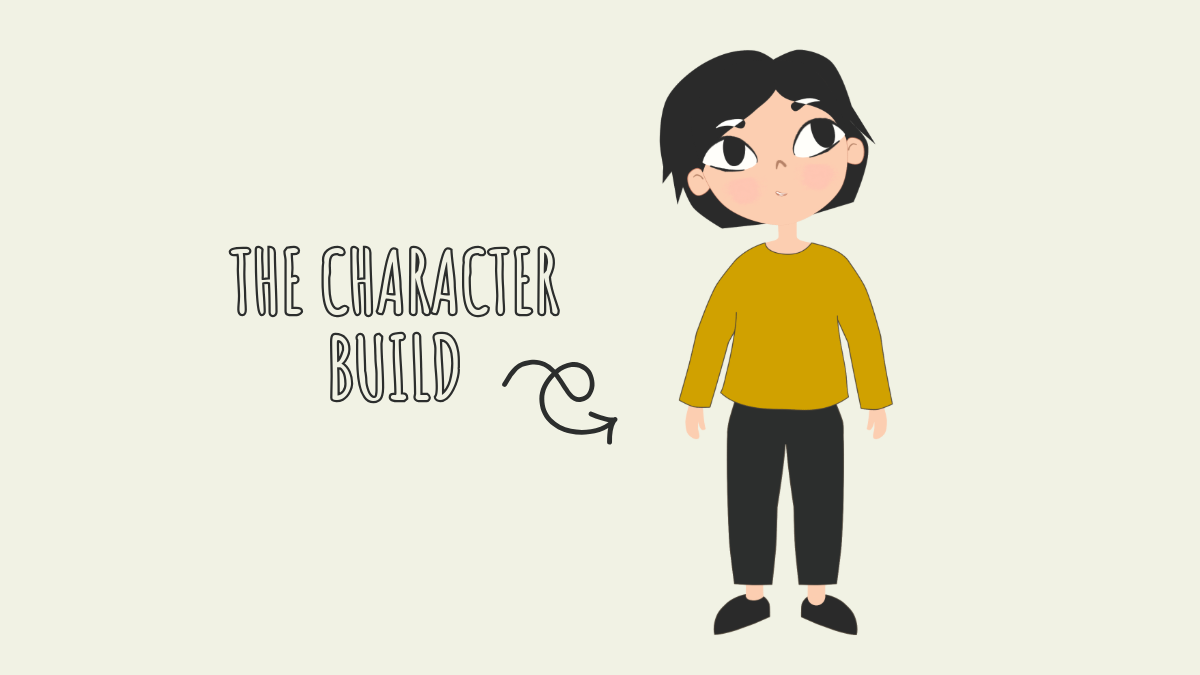
Now I’m moving the character and really seeing the limb connections. Stretch too far and parts vanish—wings don’t connect properly at the bottom, top of the leg i s missing. Note it. Next time, fix it. Procreate pixels stretch, but I want that look with vector —clean, bendable, unbreakable. I’ve seen it done, but it seems impossible.
I bounced back and forth between selecting a bone, transforming a bone, and manipulating a bone. Yeah… got a bit confusing. Need to remember: Transform = move, Manipulate = pose. One moves the handle, the other bends the limb. Keep it simple.


also note, outside of zero frame
Transform Bone Tool: use this to move your target.
Day 8 — Afterthoughts
I can’t believe I’m 8 days in… only 30 to go. How much of this can I even keep in my head? So far, I just love Moho. I really love it. There’s something so special about taking something stagnant and making it move. Maybe a metaphor for life… or maybe I’m just tired. lol
That’s enough for today… bones, pixels, and all. Time to let it simmer. Catch you tomorrow. ✨
nik